Exporting data
A capture leaves ScanaStudio in one of two ways: as a .scana workspace, which keeps everything
and reopens exactly as you left it, or as a CSV file, that other tools can read.
Saving a workspace
File > Save writes a .scana file holding the samples, the device configuration, the decoders
and their settings, and the markers and measurements. Reopening it restores the workspace, with
or without the instrument connected.
The server writes that file, not the window. If you are connected to a server on another machine, the path you give resolves on that machine.
ScanaStudio can also autosave changed workspaces in the background. The interval, the folder and the size above which a workspace is skipped are under Settings ▸ Workspace.
Exporting to CSV

Export to CSV… opens the dialog:
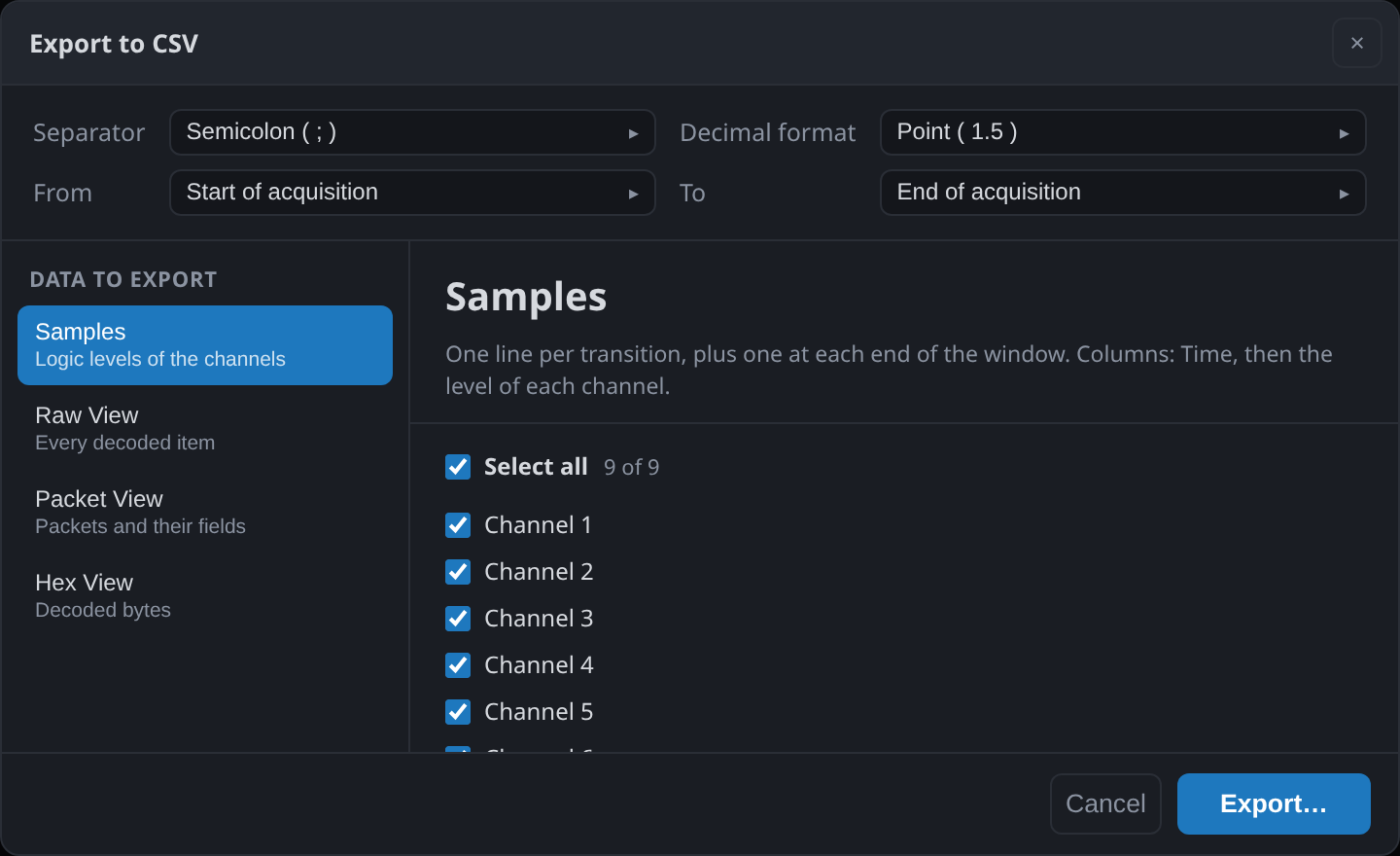
Choose what to write under Data to export:
| Source | What you get |
|---|---|
| Samples | One line per transition, plus one at each end of the range. Columns: time, then the level of each channel. |
| Raw View | Every decoded item, in order |
| Packet View | Packets and their fields |
| Hex View | Decoded bytes |
Samples is a list of transitions, not one row per sample period. That is how the server stores a capture, and it is why a CSV of a long, mostly idle capture is small. To reconstruct a fixed-rate sample stream from it, hold each level until the next timestamp.
The rest of the dialog:
- Channels, or decoder instances for the item sources: what to include.
- From and To: the whole acquisition, or between two markers. Placing a pair of markers around the part you care about is the way to export a manageable slice of a very long capture.
- Separator and Decimal format: semicolon or comma, point or comma. Match these to the locale of whatever will read the file, since a comma separator and comma decimals cannot both be used.
Large exports show progress and can be cancelled.
Doing it repeatedly
Exporting by hand is fine once. If you find yourself doing it after every capture, the SDK writes the same data from a script, along with the capture that produced it: see Driving ScanaStudio from code and the SDK's decode and export guide.
Importing
ScanaStudio does not load a CSV back into the waveform. A capture comes from an instrument, or
from a .scana file.
A CSV can be fed to a device that generates, though: the CSV importer generator script turns one into a pattern an SP1000G can drive onto a board. See Pattern generator.