Signal overlay
The signal overlay lets you draw over a capture: change a level, remove a glitch, extend a pulse. The drawing sits on top of the captured samples until you decide to keep it or throw it away, so nothing is altered until you say so.
What it is for
- Removing a glitch that stops a decoder working, so you can read the rest of the transaction rather than losing the whole capture to one spike.
- Asking what if. Lengthen a chip select, move an edge, and re-run the decoder to see whether that would have been enough.
- Sketching a signal that you do not have, to check that a decoder or a script handles it.
Drawing
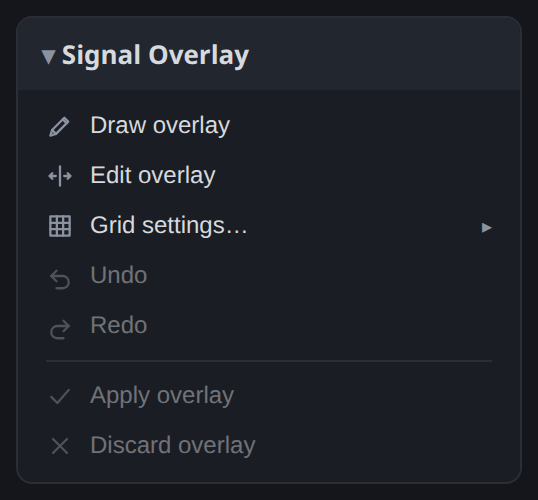
Draw overlay puts the pointer in drawing mode: click and drag along a channel to set its
level over that span. Edit overlay switches to moving what you drew, by dragging an edge;
holding Ctrl while dragging carries everything after that edge along with it.
Grid settings… decides what the drawing snaps to. There are three choices: no grid and no snapping; a spacing that follows the current zoom; or a spacing of your own, given in samples. The last is the one to use when you are reconstructing a signal with a known bit period, since it makes every edge land on a bit boundary.
Undo and Redo work one stroke at a time, and are bound to Ctrl+Z and Ctrl+Y.
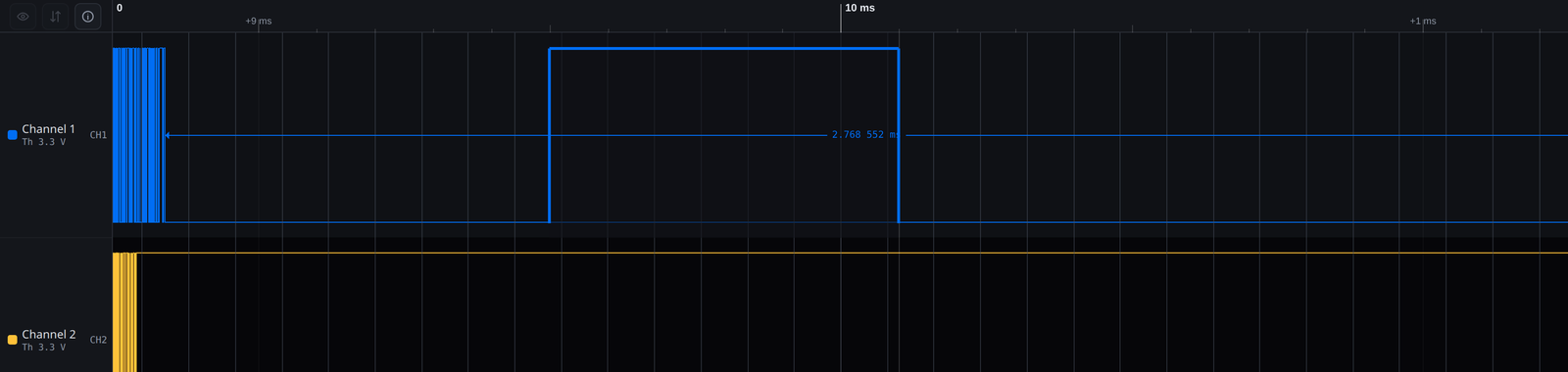
Modified samples are drawn as a dotted line, so an edited part of a capture never looks like something the instrument measured:
Keeping or discarding
Apply overlay writes the drawing into the samples. The decoders run again over the result, so this is the point at which a cleaned-up signal starts decoding. A channel that has been edited is marked, because it is no longer a measurement.
Discard overlay throws the drawing away and leaves the capture as it was.
Closing the card does neither: the overlay is hidden but kept, and it is still there when you open the card again. To get rid of it, discard it.
Applying an overlay changes the samples in the workspace. Save the workspace first if you want the original capture back afterwards.
Shortcuts
| Action | Shortcut |
|---|---|
| Draw overlay | Ctrl+D |
| Edit overlay | Ctrl+E |
| Undo the last stroke | Ctrl+Z |
| Redo the last stroke | Ctrl+Y |